

Touchscreen App for Trade Show Booths
ExpoScreen turns your catalogs, videos and slides into an interactive touchscreen app for the booth: visitors browse it themselves, your team drives it from a tablet or a clicker, and it runs with no internet at the venue. Built in the browser in about an hour, installed on any Windows or macOS touch screen.
Free to build and preview — pay once per project when the booth is ready.
Build the booth app freeThe booth screen problem
- The stand builder delivers a touch panel. You have a PowerPoint, a few product PDFs, two videos — and a week.
- PowerPoint on a touch screen has no menu: a visitor left alone gets lost in a linear deck, and the next visitor starts wherever the last one stopped.
- Venue Wi-Fi is unreliable. Web-based presentation tools and iPads mirroring a website fail exactly when a prospect is standing in front of the screen.
- Agencies quote weeks and custom budgets for a booth app; app-builder platforms charge subscriptions per device or per published app.
A touchscreen trade show app solves this when it is self-explanatory for visitors, works offline, and can be built and updated by the marketing team without a developer. That is the whole brief for ExpoScreen.
What the app does at the booth
A menu of sections
Nested folders with cover cards — Products → Series → Model — so visitors find things themselves. Home and Back buttons appear on every screen.
Catalogs and brochures
Upload PDFs: every page becomes a swipeable, full-resolution screen. No PDF viewer, no toolbar, nothing for a visitor to close.
PowerPoint slides
PPTX and PPT decks are rendered as slides with fonts and layout intact — visitors swipe through them like a catalog.
Videos
Product films play full screen from the menu, with sound and play controls you can position and resize.
Screen saver
When nobody touches the screen, your videos and images loop as an attract screen; a touch brings the menu back for the next visitor (Standard and Pro).
Three control modes
Touch — visitors browse the screen. Remote — you drive the big screen from a phone or tablet. Presenter — a regular clicker flips the slides.
Works offline
The finished presentation is an installed app for Windows or macOS. No venue Wi-Fi is needed; internet is used only to download the project and to fetch content updates.
Your brand, any screen
Logo, background image or video, colors and ready-made themes. Landscape or portrait, at the exact resolution of your panel (up to 5000 px).
Four steps from files to a booth app
Sign up and upload
Free, no card. Drop your PDFs, PPTX decks, videos and photos into the media library; conversion runs in the background.
Build the menu
Add sections — directories, presentations, videos, galleries — and nest them. Every change shows in the live preview.
Style it and pick the mode
Logo, background, theme, screen size. Choose Touch, Remote or Presenter and set up the screen saver.
Download and install
Pay once for the project, generate the app for Windows or macOS, and install it on the booth computer — from a USB stick if you like. It starts full screen.
Every step with screenshots: ExpoScreen tutorials →
Touch, Remote or Presenter — one project, three ways to run it
Touch
Visitors browse the catalog on the touch panel or touch table by themselves while your team talks to other people. Included in every plan.
Remote
A salesperson opens the right video or slide on the big screen from a phone or tablet while standing next to the client — the screen itself does not need touch. Standard and Pro.
Presenter
For talks on the booth stage or a video wall: a regular clicker presenter (for example, Logitech R400 or R800) flips the slides. Standard and Pro.
Which hardware works
The rule is simple: the screen must be driven by a Windows or macOS computer. Everything else — size, orientation, whether it is a panel, a kiosk or a table — is up to you.
Touch panels and touch TVs
The most common booth setup: a large touch display with a Windows PC or an OPS module behind it. The app is generated for the exact resolution you enter, landscape or portrait.
Kiosks and all-in-one touch PCs
Self-contained Windows devices — ideal for Touch mode. Install the app, add it to Startup, and the kiosk boots straight into the presentation.
Touch tables
Windows touch tables run the app like any other Windows software; several visitors can gather around a catalog. Our AIM Dubai case below ran on a touch table.
Video walls, LED screens and plain TVs
No touch? Use Remote mode from a tablet or Presenter mode with a clicker. The BRICS forum case ran on a large LED screen with a Logitech presenter.
Macs
A Mac mini or MacBook behind a display works too: the project can be generated for macOS as well as for Windows (both on Standard and Pro; one of the two on Lite).
Tablets and phones: remote only
The finished app does not install on Android or iOS. A tablet or phone is the remote control for the main screen. If the booth has only an iPad and no computer, ExpoScreen is not the right tool.
Renting the screen from the stand builder? A short checklist
- Ask the stand builder for a touch panel with a Windows PC (or an OPS module) and permission to install one application on it.
- Bring the project archive on a USB stick and keep a copy on a laptop — installation needs no internet.
- Install a day before the show, add the app to Startup, and check the screen saver and the control mode on the real screen.
- If the screen is a plain TV or LED wall, bring a tablet or a clicker and switch the project to Remote or Presenter mode.
Case studies
Real projects our clients run at exhibitions and showrooms
AIM Dubai — investment catalog of the Republic of Tatarstan
A catalog of investment project presentations in Touch mode: visitors explore the economic, tourism and investment potential of the republic right on the touch table.
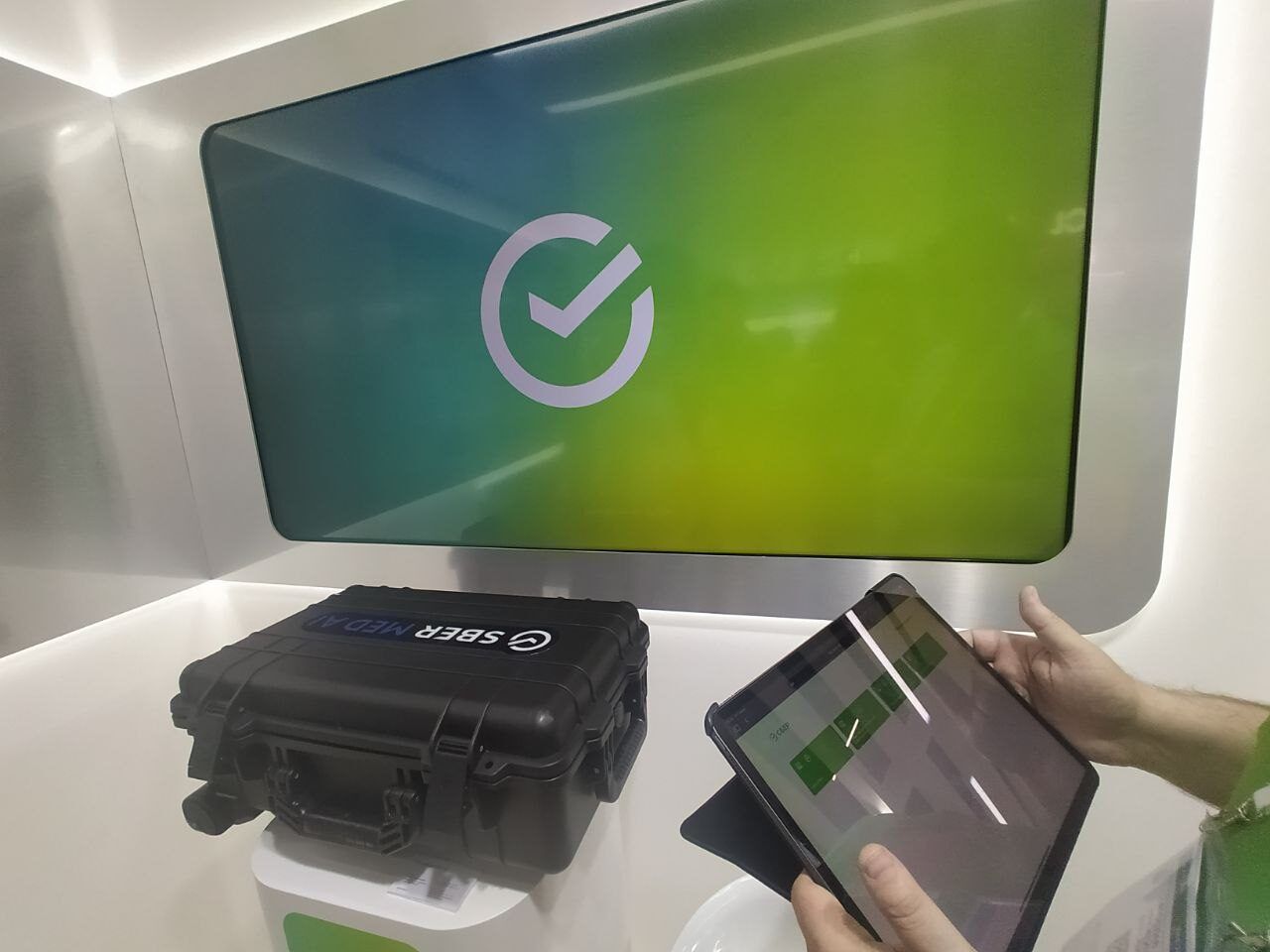
CIPR exhibition — Sberbank stand
Remote mode with an iPad, a laptop and a TV: the iPad works as a remote control for all the content and sends the right presentations and videos to the TV screen.
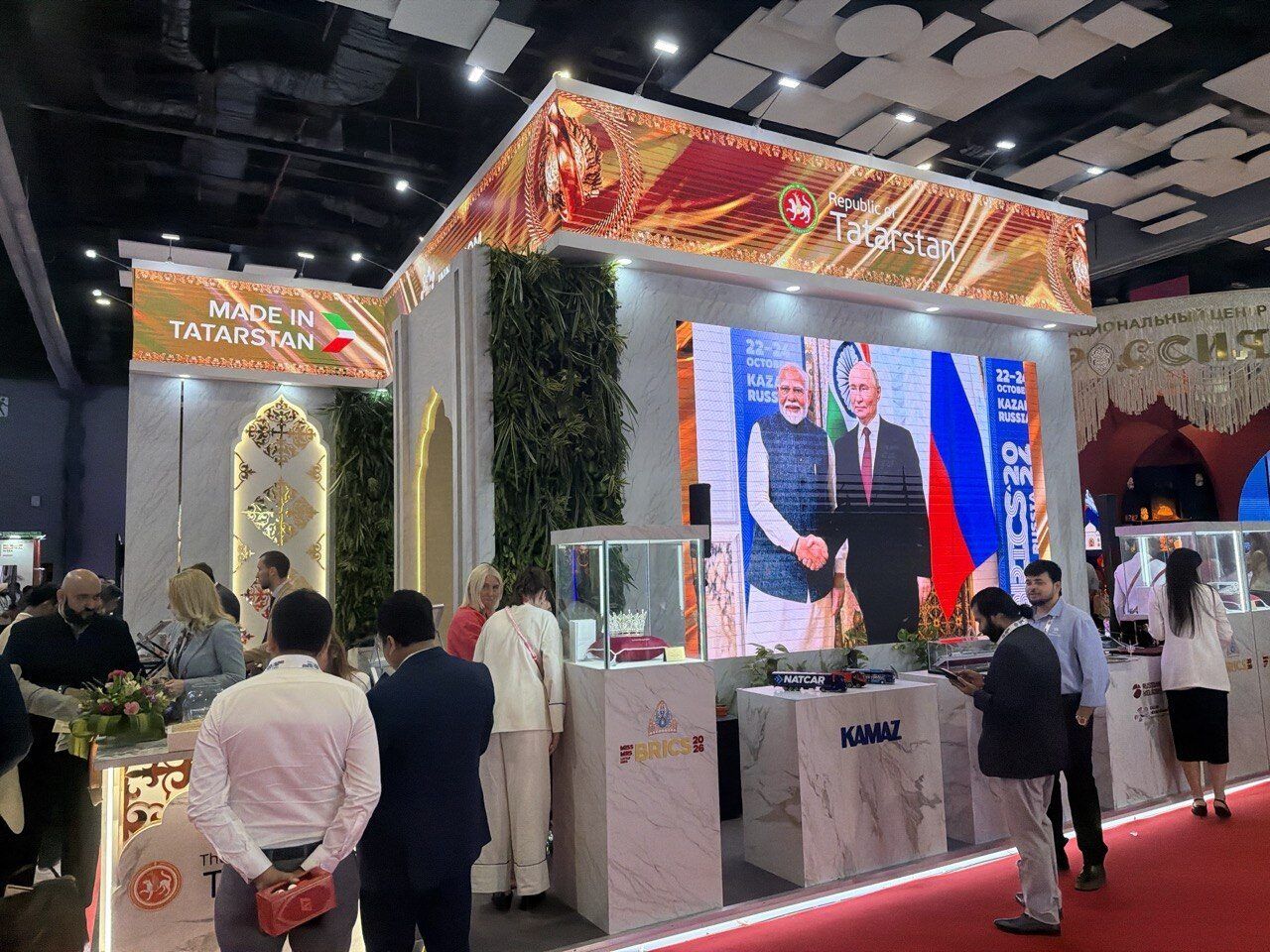
BRICS forum — LED screen of the Republic of Tatarstan
A program for a large LED screen: presentations, videos and static images are switched with a Logitech R400 / R800 presenter. While the stand was idle, screen saver mode played a queue of videos and presentations for visitors.
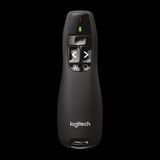 Controlled with a Logitech R400 / R800 presenter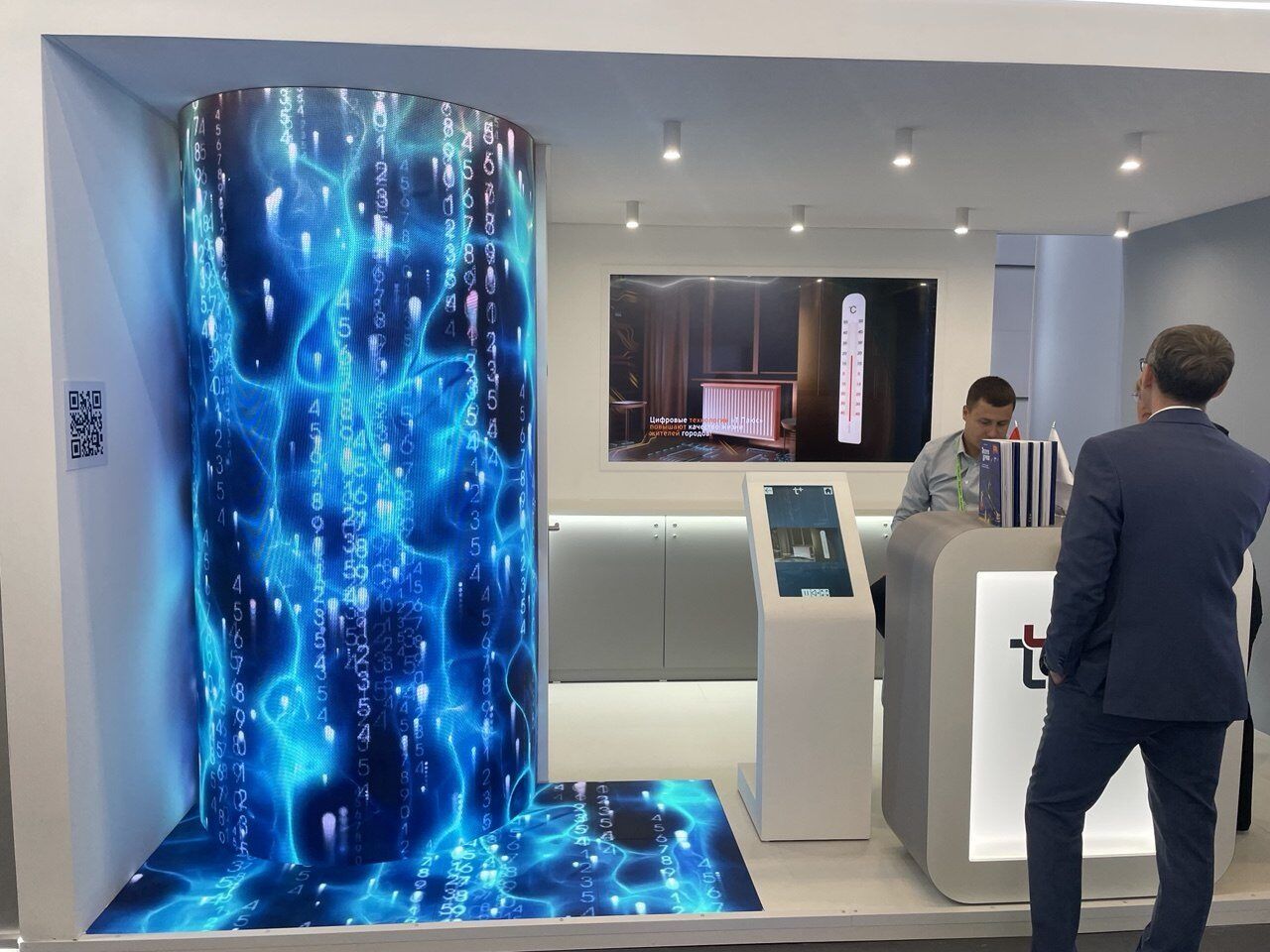
CIPR exhibition — T Plus stand
The client built a catalog of its own solutions in Remote mode, linking a touch screen and an LED screen into one synchronized setup. When nobody touched the screen, screen saver mode looped the company's brand videos on the LED screen.
Pricing
One price per project. Install the finished app on any number of screens.
Try it for free and pay only if you like the result
Lite
One screen, one event
per project, one-time
Start free- Touch mode
- Windows or macOS — one platform
- Media library up to 2 GB
- Content updates for 30 days after payment
- AI design: 1 theme generation, 1 image run
- "Made with ExpoScreen" badge on the idle screen
One-time payment — the app works forever.
Standard
Most chosenA stand with several screens
Launch discount 30% until October 31
Start free- Touch, remote and clicker modes
- Windows and macOS
- Media library up to 5 GB
- Unlimited content updates
- Screen saver and cloud import
- AI design: 5 theme generations, 3 image runs
- Install on any number of devices
One-time payment — the app works forever.
Pro
Agencies and regular exhibitors
per project, one-time
Start free- Everything in Standard
- 5 projects (brands) per year, then $79 each
- Media library up to 20 GB
- Project templates
- AI design: 20 theme generations, 10 image runs
- Priority conversion and builds
- Telegram chat support
One project = one exhibitor. Pro covers five.
Building and previewing is free on every plan; up to 1 GB of media for unpaid projects. Pay when the presentation is ready for the event. Upgrading later costs the difference.
Touchscreen trade show app: common questions
Does the touchscreen app work without internet at the venue?
Yes. The presentation is an app installed on the booth computer and it runs fully offline. Internet is only needed once to download the project, and later if you push content updates to the installed app.
What hardware do I need for a touchscreen trade show app?
Any touch screen driven by Windows or macOS: a touch panel with a PC or OPS module, a kiosk, an all-in-one touch PC or a touch table. A plain TV, LED screen or video wall also works — visitors will not touch it, but you control the presentation from a phone, a tablet or a clicker.
Can the app run on an iPad or an Android tablet?
No. The finished presentation is a Windows or macOS app and cannot be installed on Android or iOS. A tablet or phone can be the remote control for the big screen in Remote mode.
How many screens can I install it on?
On Standard and Pro, as many as you need: the payment is for the project, not for screens, so the same app can run on every panel at the booth at no extra cost. Lite covers one platform, Windows or macOS.
Can I reuse the app for the next trade show?
Yes. Edit the media and menu in the browser, then either download a new build or push the update to the installed app from its settings window. Updates are unlimited on Standard and Pro and included for 30 days after payment on Lite. There is no renewal — the app keeps working.
How long does it take and what does it cost?
A first project takes about an hour; later updates take about 15 minutes. Building and previewing is free. When the presentation is ready you pay once per project: Lite $79, Standard $199 or Pro $499 for agencies — no subscription.
Related pages
Get the booth screen ready this week
Sign up, build the app from the files you already have and see it in the preview — for free. Pay only when it is ready for the show.
Start free