

Touch Screen Kiosk Software for Lobbies and Reception Areas
ExpoScreen turns the touch screen in your lobby, reception or showroom into a self-running kiosk: a touch menu with your company story, catalogs, videos and slides, and an attract loop when nobody is around. Built in the browser in about an hour, it runs offline on any Windows or macOS kiosk and starts together with the PC.
Free to build and preview — pay once per project, no monthly fee per screen.
Build your kiosk freeWhere a lobby kiosk earns its place
Corporate lobby
Company overview, history, brand film, key projects and careers — guests browse while they wait for their meeting.
Showroom and sales office
Product lines, specifications and price-list PDFs next to the real products, so visitors explore before a manager steps in.
Real estate sales gallery
Layouts, renderings, construction progress and the neighbourhood video on a touch panel or a touch table.
Hotel and reception desk
Services, restaurants, spa, conference rooms and local guides — answered by the screen instead of the front desk.
Museum and visitor centre
Exhibit stories with photos and video next to the objects, in a menu that resets for every new visitor.
University and school entrance hall
Programs, campus life, achievements and open-day videos for applicants and parents.
Browser kiosk mode, digital signage or kiosk software?
Three usual ways to fill a lobby touch screen, and where a dedicated offline kiosk app fits. Pricing models are typical for each category; check the current terms of a specific vendor.
| Browser in kiosk mode | Digital signage player | Kiosk SaaS platform | ExpoScreen | |
|---|---|---|---|---|
| Interactive menu of sections | Only if you build a website | No — plays a loop | Yes | Yes — nested sections with cover cards |
| Works with no internet | No (unless the site is local) | Usually, from a local cache | Varies, often cloud-dependent | Yes — installed app, fully offline |
| PDF catalogs and PowerPoint | Opens a viewer with toolbars | As static slides | Varies | Swipeable pages and slides, no viewer UI |
| Attract loop when idle | No | Yes — it is the whole product | Yes | Yes — your videos and images, a touch returns to the menu |
| Pricing model | Free, plus web development | Usually per screen per month | Usually per screen per month | One payment per project, no subscription |
| Who builds the content | A web developer | Marketing team | Marketing team | Marketing team, in about an hour |
Built for unattended screens
Starts with the PC
Put the app in the Windows Startup folder and the kiosk boots straight into your presentation, full screen, with no desktop or taskbar in sight.
Attract loop
After the idle time you set, your videos and images loop as a screen saver. A touch brings the menu back for the next guest (Standard and Pro).
Hidden, PIN-protected settings
The settings window opens with five quick taps in a hidden corner and can ask for a 4-digit PIN, so visitors cannot change anything.
Catalogs, slides and video
PDF pages and PPTX slides become swipeable screens; videos play full screen from the menu with sound and play controls.
Your brand, any orientation
Logo, background image or video, colors and themes. Landscape or portrait totem, at the exact resolution of your screen.
Updates in minutes
Change media and menu in the browser, then press «Download updates» in the kiosk settings — no reinstall, no USB stick. Unlimited on Standard and Pro.
Video: setting up the attract loop
From files to a running kiosk in four steps
Upload your files
Free, no card. Drop PDFs, PPTX decks, videos and photos into the media library; conversion runs in the background.
Build the menu
Add sections — directories, presentations, videos, galleries — and nest them. The live preview shows exactly what guests will see.
Set up the kiosk
Screen size and orientation, logo and theme, attract loop and idle time, settings PIN.
Run it on the kiosk
Pay once, download the project for Windows or macOS, unzip it on the kiosk and start ExpoScreen. Nothing to install, no admin rights needed.
Video: install on a Windows touch screen and start with the PC
Every step with screenshots: ExpoScreen tutorials →
Which kiosks work
The rule is simple: the screen must be driven by a Windows or macOS computer. Size, orientation and enclosure are up to you.
Kiosks and all-in-one touch PCs
Floor-standing or wall-mounted Windows kiosks are the most common lobby setup. Any size, landscape or portrait.
Touch panels with an OPS module or a PC
A large touch display driven by a slot-in OPS computer or a PC behind the wall. Windows treats touch like a mouse, so there is nothing extra to set up in ExpoScreen.
Touch tables
Windows touch tables run the app like any other program — popular in sales galleries and museums.
Android-only screens
The app runs on Windows and macOS, not on the built-in Android of a display. Add an OPS module or a small PC; a phone or tablet can only be the remote control.
Case studies
Real projects our clients run at exhibitions and showrooms
AIM Dubai — investment catalog of the Republic of Tatarstan
A catalog of investment project presentations in Touch mode: visitors explore the economic, tourism and investment potential of the republic right on the touch table.
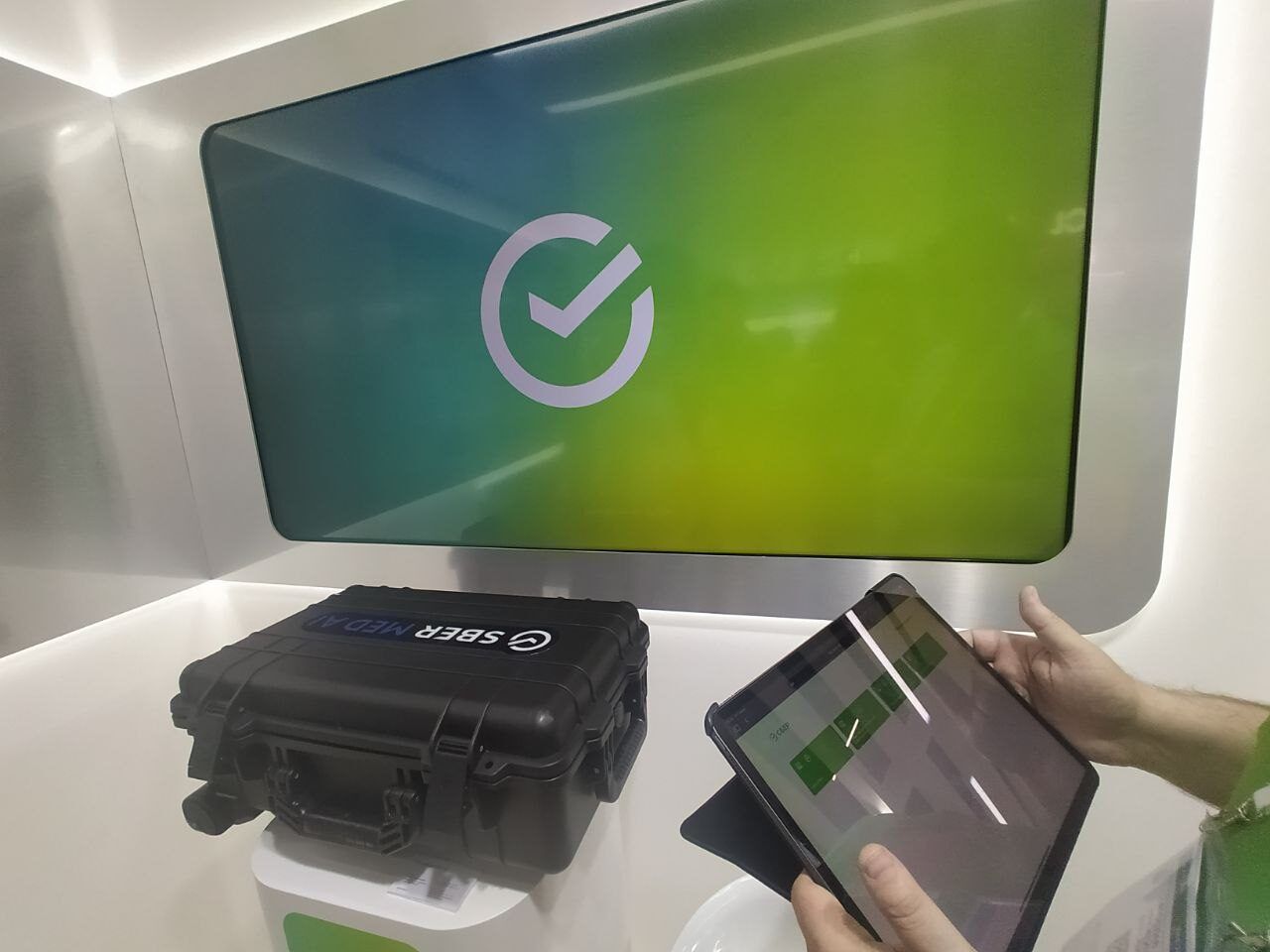
CIPR exhibition — Sberbank stand
Remote mode with an iPad, a laptop and a TV: the iPad works as a remote control for all the content and sends the right presentations and videos to the TV screen.

BRICS forum — LED screen of the Republic of Tatarstan
A program for a large LED screen: presentations, videos and static images are switched with a Logitech R400 / R800 presenter. While the stand was idle, screen saver mode played a queue of videos and presentations for visitors.
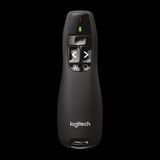 Controlled with a Logitech R400 / R800 presenter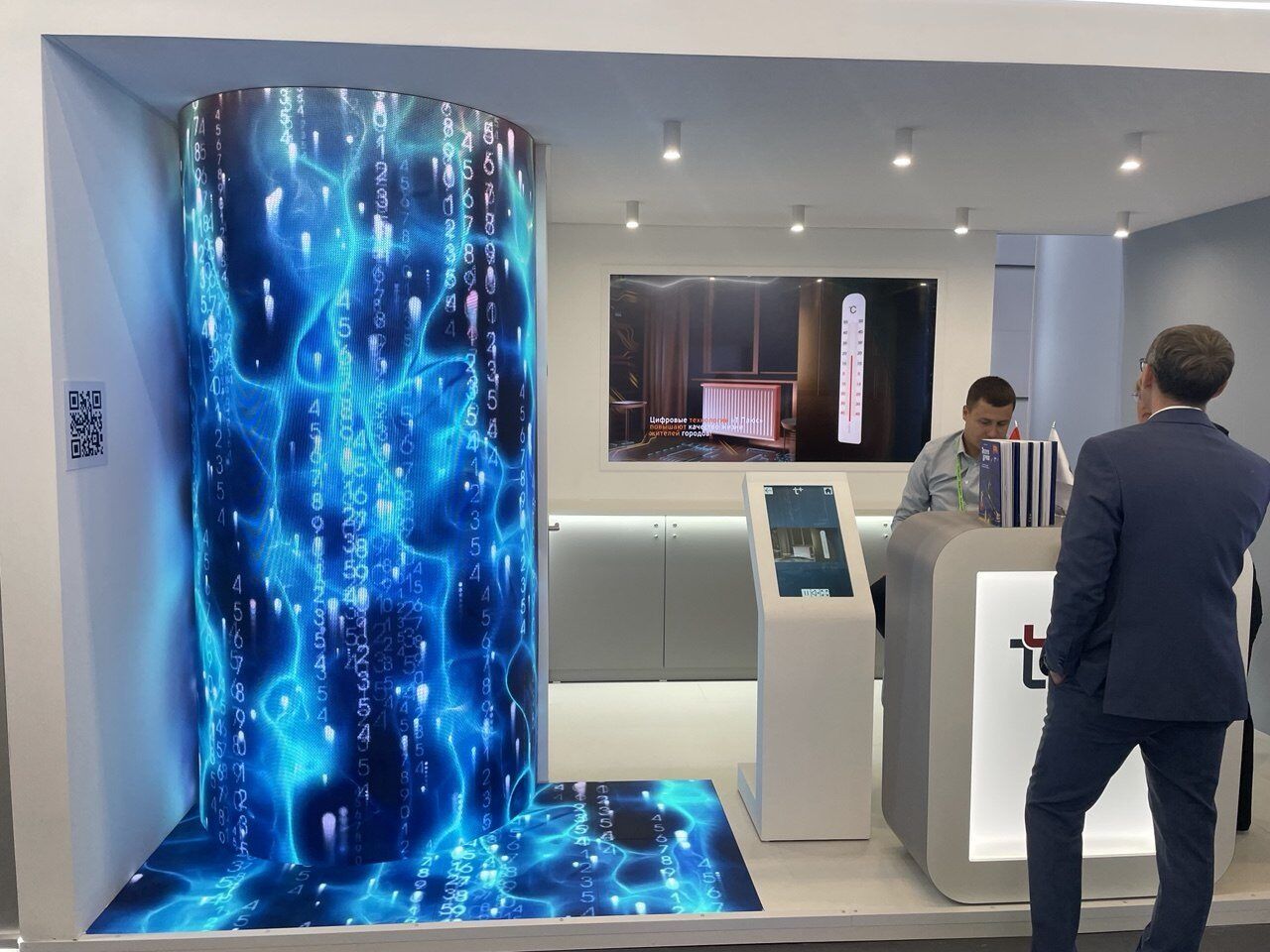
CIPR exhibition — T Plus stand
The client built a catalog of its own solutions in Remote mode, linking a touch screen and an LED screen into one synchronized setup. When nobody touched the screen, screen saver mode looped the company's brand videos on the LED screen.
Pricing
One price per project. Install the finished app on any number of screens.
Try it for free and pay only if you like the result
Lite
One screen, one event
per project, one-time
Start free- Touch mode
- Windows or macOS — one platform
- Media library up to 2 GB
- Content updates for 30 days after payment
- AI design: 1 theme generation, 1 image run
- "Made with ExpoScreen" badge on the idle screen
One-time payment — the app works forever.
Standard
Most chosenA stand with several screens
Launch discount 30% until October 31
Start free- Touch, remote and clicker modes
- Windows and macOS
- Media library up to 5 GB
- Unlimited content updates
- Screen saver and cloud import
- AI design: 5 theme generations, 3 image runs
- Install on any number of devices
One-time payment — the app works forever.
Pro
Agencies and regular exhibitors
per project, one-time
Start free- Everything in Standard
- 5 projects (brands) per year, then $79 each
- Media library up to 20 GB
- Project templates
- AI design: 20 theme generations, 10 image runs
- Priority conversion and builds
- Telegram chat support
One project = one exhibitor. Pro covers five.
Building and previewing is free on every plan; up to 1 GB of media for unpaid projects. Pay when the presentation is ready for the event. Upgrading later costs the difference.
Touch screen kiosk software: common questions
What is touch screen kiosk software?
It is the program that runs on a public touch screen and shows visitors an interactive menu instead of a desktop or a browser. ExpoScreen builds that program from your own files — PDFs, slides, videos and photos — and installs it on a Windows or macOS kiosk.
Does the lobby kiosk need internet?
No. The presentation is an app on the kiosk computer and it runs fully offline. Internet is only needed to download the project and, later, to pull content updates.
How do I make the kiosk start the presentation automatically?
Create a shortcut to ExpoScreen.exe and put it into the Windows Startup folder (Win+R → shell:startup). After a reboot or a power cut, the kiosk opens the presentation full screen by itself. The setup video on this page shows it step by step.
Can visitors close the app or change settings?
The app runs in kiosk mode — full screen, without window buttons or the taskbar. The settings window opens only with five quick taps in a hidden corner, and you can protect it with a 4-digit PIN.
Is there a monthly fee per screen?
No. You pay once per project: Lite $79, Standard $199 or Pro $499 for agencies. On Standard and Pro the same project can run on every kiosk in the building at no extra cost, and the app keeps working with no renewal.
Can I use it for a wayfinding or visitor check-in kiosk?
Partly. ExpoScreen shows floor plans and guides as images or PDF pages in a menu, but it has no interactive map search, visitor registration or badge printing. For those tasks use dedicated wayfinding or visitor-management software.
Related pages
Put your lobby screen to work this week
Sign up, build the kiosk from the files you already have and check it in the preview — for free. Pay only when it is ready to go on the wall.
Start free