AI stand design: describe the style and get a designed start screen
A big editor update — start screen themes, themes, images and a video background generated from a text description, AI color schemes and a PIN code for the in-app settings window.
Until now every presentation started the same way: colored tiles with captions. From today the start screen can match a brand in a few minutes, and the AI does most of the work. Here is what is new.
Start screen themes
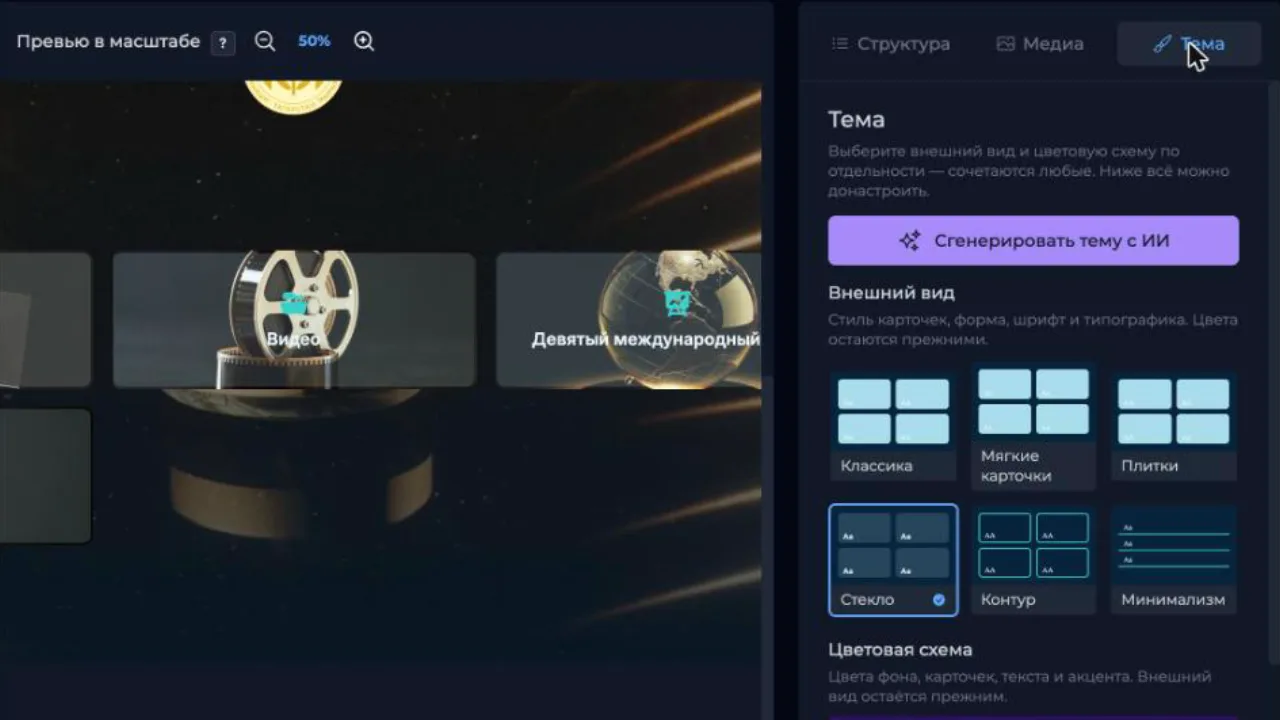
The editor has a new Theme tab next to the structure and the media library. It holds two independent galleries:
- Look — how the menu buttons are drawn. Six options: classic, soft cards, photo tiles, glass, outline and minimal. Shape, shadow, font and caption typography change with it.
- Color scheme — background, card, text, accent and control colors. Eight built-in schemes from corporate to gold and neon.
Any pair works: glass with the nature palette, tiles with graphite. Thumbnails are drawn in the current colors and the current style, so you see the result before you click. Every parameter can be fine-tuned below the galleries.
We also added new fonts with Cyrillic support, a layout with a large hero panel for an image or video next to the menu, and a background overlay so captions stay readable on any photo.
A theme from a description
The Generate a theme with AI button asks for a couple of sentences about the brand and the mood: "premium dark style with gold accents for a jewellery brand". If the project has a logo, the AI reads the palette from it.
Fifteen seconds later you get three different themes with names and a short note on why these colors and this font were chosen. Any of them applies with one click, the others stay available. Buttons remain real buttons: the touch app, the phone remote and the offline build keep working.
Images and a video background
From the same description the AI draws a start screen background and a cover for every menu item in one consistent style. There is no text in the images — captions are still edited in the structure. Finished images appear in the preview as they are ready, about a minute each.
A separate checkbox makes a video background: the generated background comes alive as a ten-second seamless loop with soft light movement. The clip ships with the app as a regular media file and works offline.
Any generated image can be picked as the cover of any menu item right in the item's create or edit form.
The whole stand in one click
If you do not want to go step by step, there is Generate the stand: three themes, the first one applied automatically, then background and covers, optionally the video. About ten minutes and the start screen is ready. The two other themes stay in the dialog, one click away.
Your own color schemes
The color scheme gallery has a Generate a color scheme with AI button. Describe the mood and three ready schemes are added to "My schemes". They are shared across all your projects and can be deleted with the cross. Colors of applied AI themes are saved there too.
A PIN for the settings window
On the stand, the in-app settings window with updates and the screen saver is now hidden: it opens after five quick taps in the bottom-right corner of the screen. A four-digit PIN can be set in the project, and without it the window does not open. Visitors will not land in the settings by accident anymore.
What the plans include
Theme generations and image runs are part of every plan: Lite gets one theme generation and one image run, Standard five and three, Pro twenty and ten. An unpaid project has two free theme generations and one image run to try it out.
Open any project, switch to the Theme tab and describe your stand.